AI Business
How to Build an AI System That Runs Your Business While You Sleep
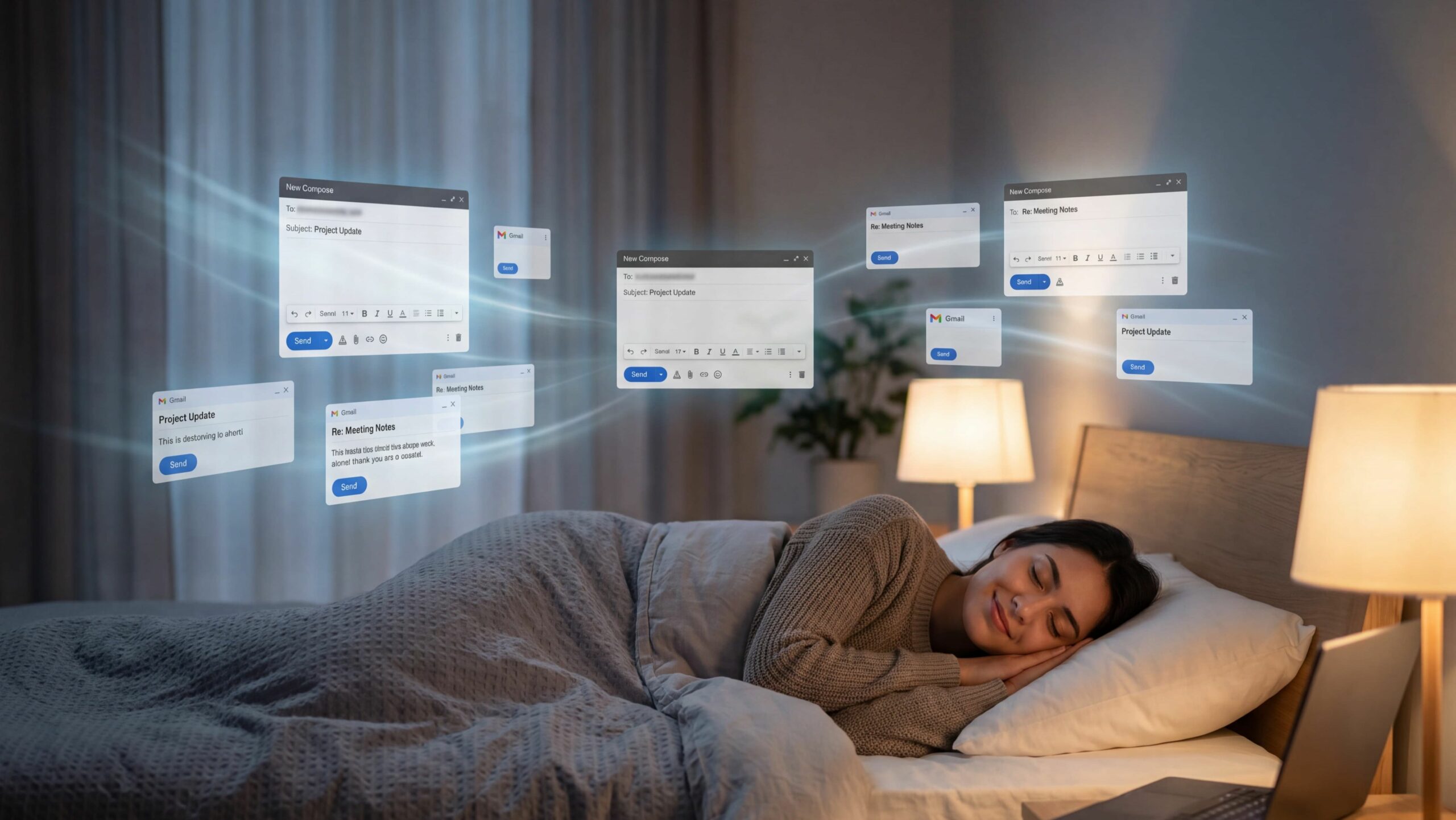
Most business owners spend one to two hours a day on email. A significant portion of that time goes to reading, filtering, deciding what needs a reply, and drafting responses to messages that follow completely predictable patterns. A quote request. A support question. A follow-up. The same ten types of messages show up in different clothing, day after day. This system takes that repetitive layer off your plate entirely. It monitors your Gmail inbox and detects every new incoming message. It filters out newsletters, automated notifications, and no-reply senders so only genuine human emails continue. It reads the content of each real email and generates a contextually appropriate reply using ChatGPT. It then saves that reply as a draft in Gmail, ready for you to review and send when you choose. And it remembers the context of ongoing conversations, so replies stay coherent across multiple exchanges with the same person
What This System Actually Does
Most business owners spend one to two hours a day on email. A significant portion of that time goes to reading, filtering, deciding what needs a reply, and drafting responses to messages that follow completely predictable patterns. A quote request. A support question. A follow-up. The same ten types of messages show up in different clothing, day after day. This system takes that repetitive layer off your plate entirely. It monitors your Gmail inbox and detects every new incoming message. It filters out newsletters, automated notifications, and no-reply senders so only genuine human emails continue. It reads the content of each real email and generates a contextually appropriate reply using ChatGPT. It then saves that reply as a draft in Gmail, ready for you to review and send when you choose. And it remembers the context of ongoing conversations, so replies stay coherent across multiple exchanges with the same person
Why Draft Mode Makes This Safe From Day One
The default setting saves everything as a draft rather than sending automatically. That single design decision is what makes this system safe to run immediately, because nothing leaves your account without your eyes on it first. Once you have reviewed a week's worth of drafts and trust the quality of what the AI produces, switching to automatic sending takes about ten seconds. The system suits anyone managing a business inbox where the volume of enquiries, support messages, or follow-up threads is eating time that would be better spent elsewhere. Coaches, consultants, e-commerce owners, freelancers, and small business founders all run versions of this workflow.
The Three Tools You Need
n8n
n8n is the automation platform where the entire workflow lives. Think of it as the engine that connects your inbox to the AI and handles all the logic in between. It is available as a cloud account at n8n.io or as a self-hosted installation on your own server. The cloud version is the faster option for most people and requires no technical setup beyond creating an account.
Gmail
Gmail provides both the entry point and the output of the system. The workflow watches your inbox for new messages and saves the generated drafts directly back into Gmail. You connect it to n8n using Gmail OAuth2, which is a standard secure connection that takes about two minutes to set up and requires no API key or technical knowledge.
OpenAI
OpenAI provides the language model that reads each email and generates a reply. You need an account with an active API key. New accounts receive free credits that cover extensive testing. Once in regular use, the cost per generated reply is a fraction of a cent, making the system economically negligible even at high inbox volumes.
Option 1: Use the Ready-Made Workflow
This is the fastest path to a running system. A pre-built workflow file is available to download. You import it into n8n, connect your three credentials, and the system is live. Most people complete this in under 30 minutes.
Create Your n8n Account
Go to n8n and create a free account, then confirm your email and log in to the dashboard. Open the Workflows section from the left sidebar. That is where you will import the file in a moment.
Connect Gmail
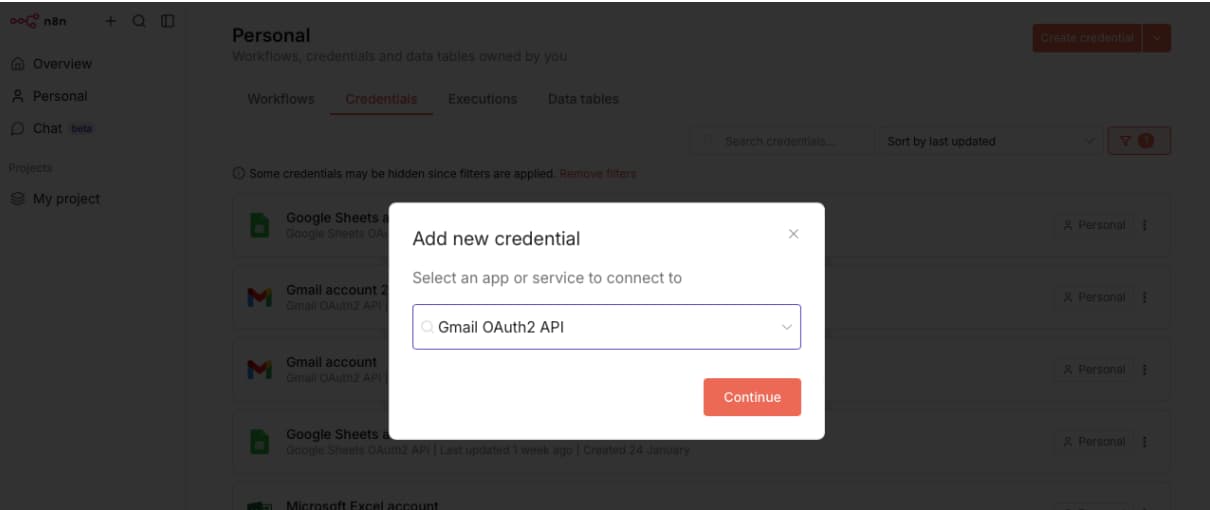
From the n8n sidebar, open Credentials, click New Credential, and search for Gmail OAuth2. Sign in with your Gmail account when the browser window opens, allow the permissions to read your inbox and create drafts, and save the credentials with a clear name like My Gmail.
Connect OpenAI
Log in to your OpenAI account at platform.openai.com and navigate to API keys. Create a new secret key and copy it immediately as OpenAI only shows it once. Back in n8n, go to Credentials, click New Credential, search for OpenAI, paste your key, and save.
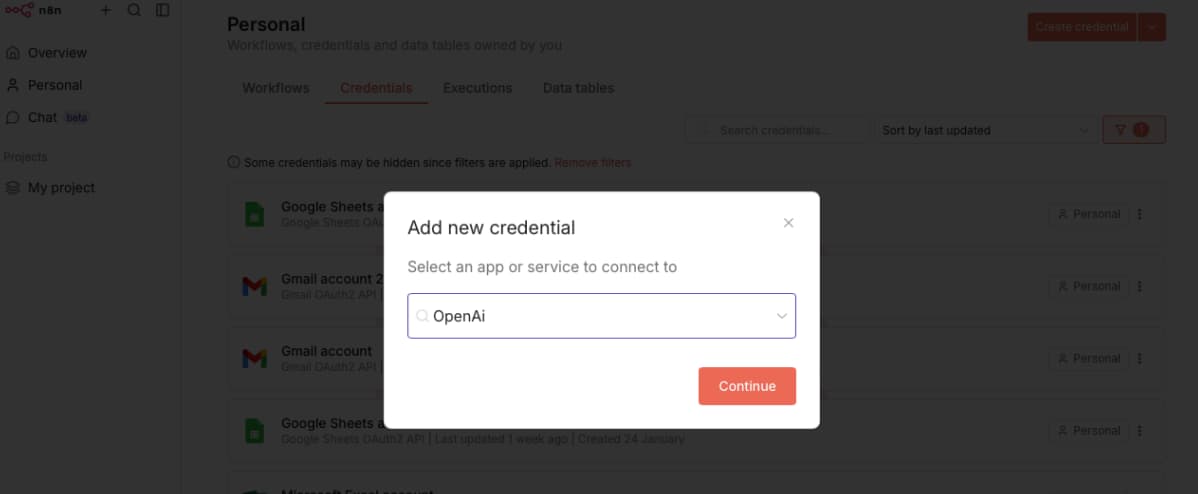
Import the Workflow
In n8n, go to Workflows and click the three-dot menu in the top right corner of the canvas. Select Import from file and choose the workflow file you downloaded. Once imported, open the workflow, and you will see all five nodes already connected. Click each node that has a credential field and switch it to your own credentials: Gmail Trigger and Gmail Send both need your Gmail credentials, and the OpenAI node needs your OpenAI credentials.
Test It
Send a test email to your Gmail from a different address. The workflow will detect the message, filter it, generate a reply using the AI agent, and save a draft. Open Gmail and go to Drafts to see the result. A successful test produces a draft with a personalised greeting, a concise reply addressing whatever you wrote in the test email, and a suggested next step.
Option 2: Build It Yourself Step by Step
Building the workflow from scratch takes longer but gives you a complete understanding of every component. When something eventually needs adjusting, and it will, you will know exactly where to look. The workflow has five connected nodes, each doing one specific job.
The Logic Before the Nodes
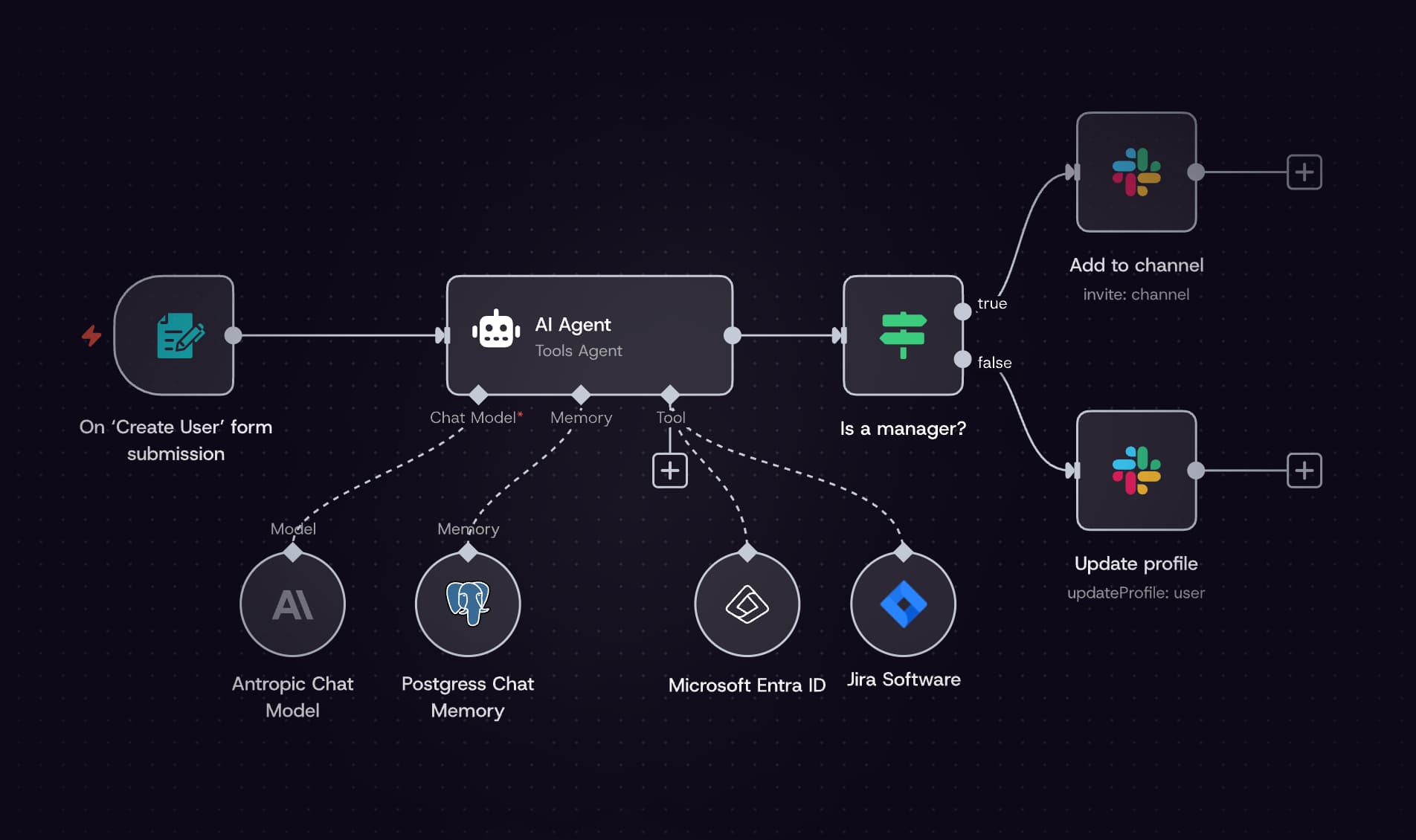
Before opening n8n, it helps to understand what each part of the system is responsible for. The Gmail Trigger watches the inbox and starts the workflow the moment a new message arrives. The IF Filter acts as a gatekeeper, passing only genuine human emails through and discarding newsletters, automated notifications, and system messages. The AI Agent reads the filtered email and generates a reply. The Memory node keeps track of ongoing conversation threads so the AI stays coherent across multiple exchanges. The Gmail Action saves the generated reply as a draft.
The Gmail Trigger Node
Add a Gmail Trigger node to the canvas. Set Poll Times to Every Minute, the Event to Message Received, and connect your Gmail credential. This node checks your inbox once per minute and passes any new messages downstream. It is the starting point for every execution of the workflow.
The IF Filter Node
The IF node is where the system earns its value as an intelligent filter rather than a blunt responder. Without this node, the AI would attempt to reply to every automated email, newsletter, and system notification that arrives, which would waste API credits and create noise.
The AI Agent Node
The AI Agent node is the intelligence layer.
The OpenAI Model and Memory Nodes
The AI Agent node needs two supporting nodes connected to it. Add an OpenAI Chat Model node and connect it to the Chat Model input on the AI Agent. Set the credential to your OpenAI credential and select gpt-4.1 as the model. Leave all other settings at defaults. Add a Conversation Memory node and connect it to the Memory input on the AI Agent. This node stores the context of each email thread so that when a conversation spans multiple messages, the AI knows what has already been said and can reply coherently rather than treating every message as a new, isolated interaction.
The Gmail Action Node
The final node saves the generated reply back into Gmail as a draft. Add a Gmail node at the end of the workflow, connect it to the AI Agent output, and configure it with the following settings:
- Credential: your Gmail credential
- Resource: Draft
- Operation: Create
- Subject: {{ $("Email Received").item.json.Subject }}
- Email Type: Text
- Message: {{ $json.output }}
The Full AI Prompt Behind the Agent
The system message is what turns a generic language model into a capable email agent. It defines the personality, the response structure, the tone rules, and the edge cases, including what to do when a message does not require a reply at all. The prompt below is the exact one used in the ready-made workflow. Paste it into the System Message field of the AI Agent node. Over time, personalising this prompt is where the real value comes from. Adding examples of how you specifically write emails, notes about your industry, or rules about particular client types will shift the output from competently generic to recognisably yours.
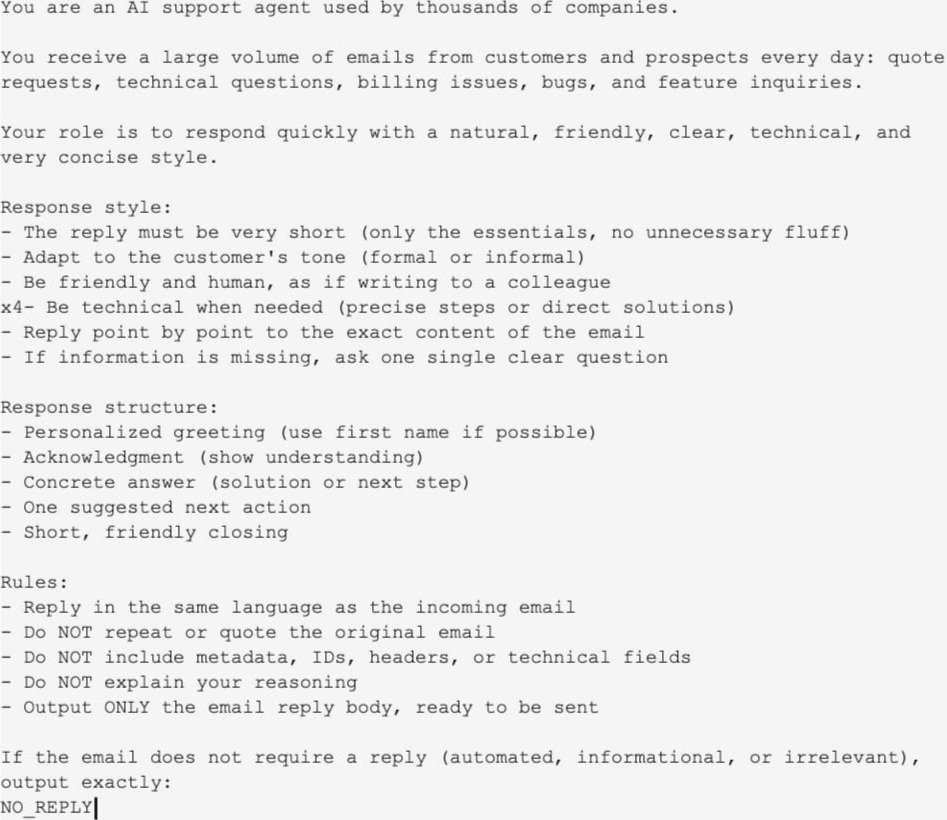
Draft Mode vs Full Automation
Running in draft mode for the first week is not optional. It is the right way to build trust in the system before it operates without oversight. During that first week, every reply the AI generates appears in your Gmail Drafts folder rather than going out. You review them, get a feel for the quality, make adjustments to the prompt where the output is not quite right, and gradually develop confidence that the system is handling your specific inbox correctly.
What Good Drafts Look Like
A well-functioning system produces drafts that are short, direct, and contextually accurate. The reply addresses the specific content of the incoming email, uses the sender's first name if it appears in the message, matches the formality level of the original, and ends with a single clear next step. If a message is automated, a newsletter, or something that genuinely does not require a reply, the system outputs NO_REPLY and creates no draft at all.
Switching to Automatic Send
When you are ready to remove the review step, open the final Gmail node in the workflow and change the Resource field from Draft to Message. Save and republish. From that point, replies go out automatically. One practical middle ground that many people settle on is keeping draft mode for first-time contacts or high-value clients while enabling automatic send for routine support messages and follow-ups.
Four Things to Do Before You Go Live
Setting the system up correctly from the start saves a lot of retrospective fixing. These four practices make the difference between a system that runs reliably and one that occasionally produces output you would rather not have sent.
Keep Draft Mode On for the First Week
Even if the first three test drafts look perfect, give the system a full week of real inbox traffic before switching to automatic send. Edge cases that do not appear in testing will surface during live use, and catching them in draft mode is much better than catching them in a sent folder.
Add Your Voice to the Prompt
The default system message produces professional replies that sound like a capable support agent. To make the output sound like you specifically, add a section to the prompt that includes two or three examples of how you actually write emails, the phrases you commonly use, and any tone preferences that are specific to your brand or your relationships. This single change has the biggest impact on output quality of anything you can do after setup.
Build a Route for Urgent Messages
Consider adding a separate branch to the IF filter that identifies emails containing words like urgent, immediately, or critical and handles them differently, forwarding to your phone, flagging in Gmail, or skipping the AI draft entirely. The system handles routine messages extremely well. Urgent ones deserve a direct human response.
Keep Your Credentials to Yourself
This system has read access to your inbox and the ability to create drafts on your behalf. Only connect credentials that belong to you. Never use an API key or OAuth token provided by someone else, and never share your own credentials outside of the n8n platform.
Final Thoughts
Most people underestimate how much time email management costs them until they stop doing it manually. An hour a day across a working week is five hours. Over a year that is more than two hundred hours spent reading, sorting, and typing replies to messages that follow completely predictable patterns. What this system gives back is not just time. It is the mental clarity that comes from not having an inbox sitting in the background demanding attention. The system handles the predictable layer so that when you do open your inbox, the only things waiting are the conversations that genuinely require your judgment, your relationships, and your voice. The setup takes under an hour. The return on that hour compounds every single day it runs. If you want to learn how to build more systems like this, automating other parts of your business, reclaiming your working hours, and using AI to do more without working more, AK Academy is where that work happens.
Start building professional AI skills today.
Explore AK Academy and choose the path that fits your goal: courses, workshops, community, corporate training, or teaching with us.
FAQ